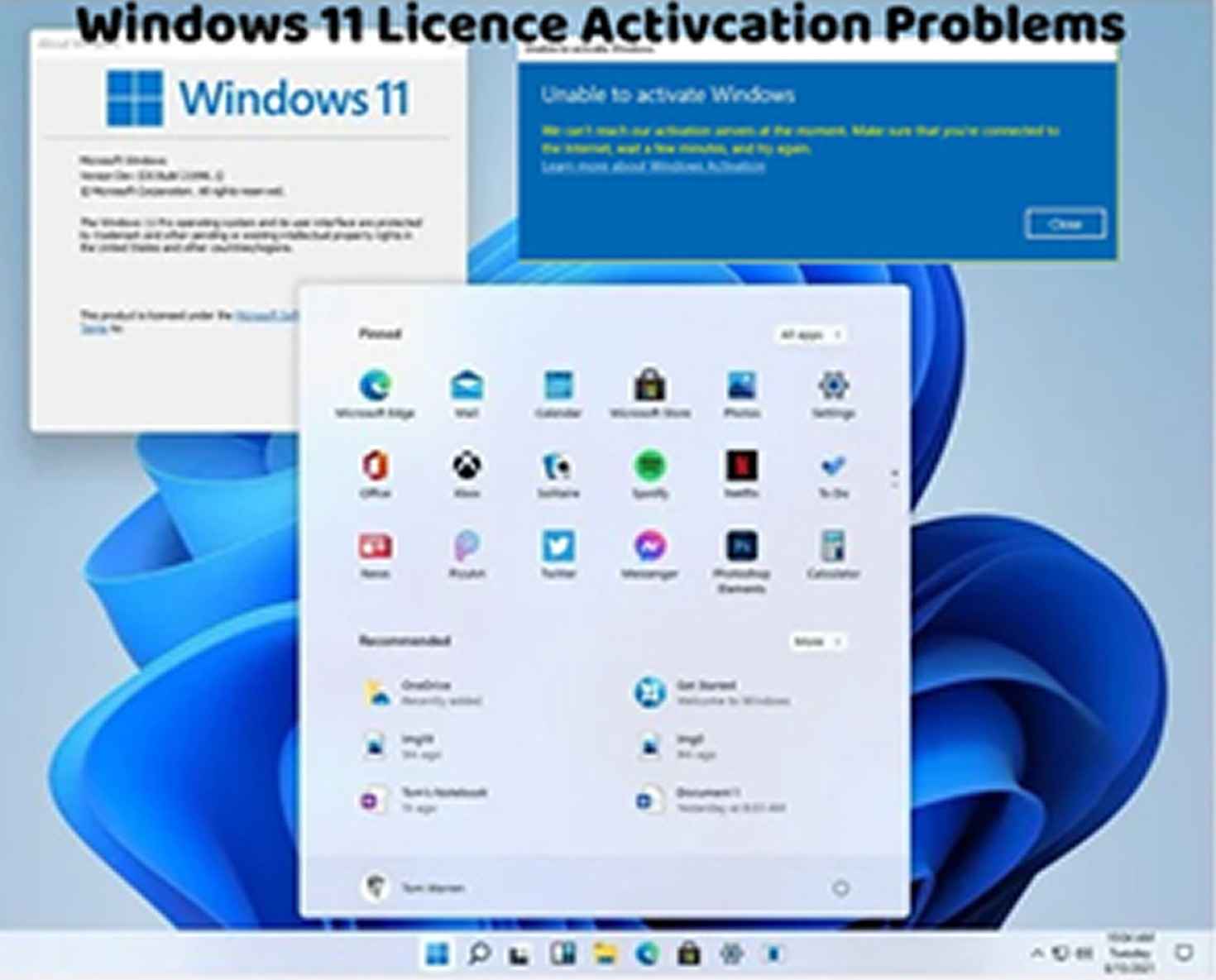
How to Fix 'Windows 11 Activation Error 0x80070422'
Encountering the Windows 11 activation error code 0x80070422 can be frustrating, as it indicates an issue with activating your operating system. This error typically occurs when there's a problem with the Windows Update service or when the required services are not running. Here's how to troubleshoot and fix this activation error:
Start Windows Update Service:
Press Win + R to open the Run dialog box.
Type "services.msc" and press Enter to open the Services window.
Scroll down and locate the "Windows Update" service.
Right-click on it and select "Start" to ensure that the service is running. If it's already running, try restarting it by selecting "Restart."
Set Windows Update Service to Automatic:
In the Services window, right-click on the "Windows Update" service and select "Properties."
Under the "General" tab, set the "Startup type" to "Automatic" if it's not already set.
Click "Apply" and then "OK" to save the changes.
Restart Background Intelligent Transfer Service (BITS):
In the Services window, locate the "Background Intelligent Transfer Service (BITS)."
Right-click on it and select "Start" to ensure that the service is running. If it's already running, try restarting it by selecting "Restart."
Set BITS Service to Automatic:
Right-click on the "Background Intelligent Transfer Service (BITS)" and select "Properties."
Under the "General" tab, set the "Startup type" to "Automatic" if it's not already set.
Click "Apply" and then "OK" to save the changes.
Run Windows Update Troubleshooter:
Open Settings and navigate to Update & Security > Troubleshoot.
Click on "Additional troubleshooters."
Find and run the "Windows Update" troubleshooter to automatically detect and fix any issues related to Windows Update.
Check Internet Connection:
Ensure that your device is connected to the internet and that there are no connectivity issues that may prevent Windows from accessing the necessary services.
Restart Your Computer:
Sometimes, a simple restart can resolve activation-related issues. Restart your computer and check if the error persists.
Contact Microsoft Support:
If you continue to encounter the "Windows 11 Activation Error 0x80070422" after trying the above steps, consider contacting Microsoft Support for further assistance. They can provide personalized support and guidance to help you resolve the activation error.
By following these troubleshooting steps, you can effectively address the Windows 11 activation error 0x80070422 and activate your operating system successfully. It's essential to ensure that the required services are running correctly and that your internet connection is stable to facilitate the activation process. If you continue to experience activation issues or require additional assistance, don't hesitate to seek help from Microsoft Support or consult with a knowledgeable individual for further guidance.