Microsoft Office 2021 Professional Plus Installation and Activation Guide ( Serbia )
Step 1: Download and Install Office 2021 Professional Plus
- Download the Office 2021 Professional Plus ISO:
- Use the official Microsoft link for the Spanish version: Download Microsoft Office 2021 Professional Plus in English Language - Download ISO file
- You can also find your direct download link for your local language from https://digitallicense.net/microsoft-office-iso-direct-download-links-urls-for-all-languages
- Mount the ISO file:
- Right-click on the downloaded ISO file and select Mount.
- Open the mounted drive and run setup.exe.
- Install Office 2021:
- Follow the on-screen instructions.
- When prompted, enter your valid product key.
- Wait for the installation to complete.
Step 2: Phone Activation of Office 2021
If online activation fails or is not available, follow these steps for phone activation:- Open Office and Start Activation:
- Open any Office application (e.g., Word, Excel).
- You will see an activation prompt. Click on “I want to activate the software by telephone”.
- Select Your Country:
- Choose Servia from the list.
- Call Microsoft Activation Center: ( Find / Select your local Phone Numbers )
- Toll Number: +(381) (11) 3305 500
- Toll-Free Number: (0) 700 300 300
- Language: Serbia
- Provide Your Installation ID:
- The activation window will display a series of numbers.
- Provide this Installation ID when prompted during the call.
- Receive and Enter the Confirmation ID:
- The automated system (or an agent) will give you a Confirmation ID.
- Enter the provided Confirmation ID into the activation window.
- Click Next and complete the activation process.
Step 3: Verify Activation
- Check Activation Status:
- Open any Office application.
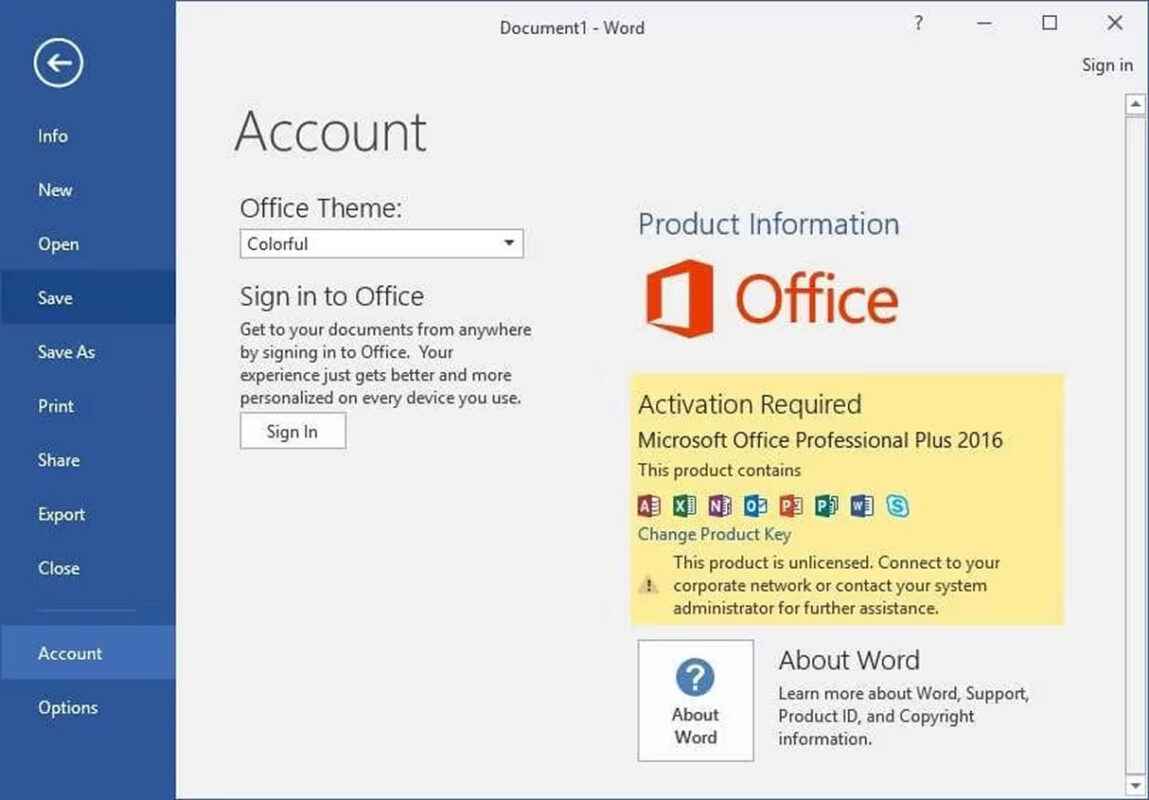
- Go to File > Account.
- Under Product Information, it should say “Product Activated”.
Troubleshooting Tips
- If the phone activation does not work, try again using the toll-free number.
- Ensure you enter the Installation ID correctly.
- If you encounter any issues, visit Microsoft Support for assistance.